 Contact Us


Pixera 25.1 INTER is the next major beta version of Pixera.
In this version, many new features have been added in recent months and many improvements have been made to the current 2.0 version branch.
In the following article you will find a compact summary of all the important information.
New Version Naming
Branch PIXERA 2.0
We will continue to incorporate fixes for crashes and major bugs in this release branch and thus continue to maintain this version.
However, the number of brushes and features will be greatly reduced and these resources will be used for the further development of the new beta branch.
Branch PIXERA 1.8 - Developer Support EOL
This branch has been in existence for some time and was replaced by PIXERA 2.0 a year ago.
This branch will be EOL at the end of 31st May 2025 and will no longer be supported by the development team. Bugs will therefore no longer be fixed in these versions.
However, support from Service will continue.
What's next - PIXERA 2.1, 2.2, 3.0?
How will the version numbering of PIXERA be continued?
In the future, we will continue with rolling releases, in which we want to add new features faster and more regularly. The current naming scheme is no longer suitable for this and we will therefore change the version numbering with the beta release.
From this release onwards, the versions will be called ‘PIXERA 25.1 INTER n’.
‘25’ stands for the year
‘1’ stands for the first ’ release string’
‘Inter’ stands for Intermediate and indicates beta versions
‘n’ stands for the consecutive numbering of the versions
We will also adopt this naming scheme for releases.
The first version to have the new release name will be based on the preceding intermediate version. Updates to the existing 2.0 release will continue to use the 2.0.x naming scheme.
What is an ‘Inter’ or ‘Intermediate’ version?
These versions are beta versions that we make available to the community so that newer features can be tested and explored at an early stage. Intermediate versions also allow us to add fixes/brushes/features more quickly.
IMPORTANT NOTE
However, these versions are not fully tested and we therefore do not recommend using these versions for productive use in shows, installations or film shoots.
UAP - Update Access Package
Starting with 2025, PIXERA software licenses will include an Update Access Pack (UAP), ensuring our customers always have access to the latest features and updates.
This new system guarantees that your PIXERA experience stays cutting-edge and aligned with industry advancements.
By moving away from the major version (1.0, 2.0, 3.0) model, we will improve the reliability and stability of our software. This approach normalizes the cadence at which features are added and allows us to release new features as soon as they are ready.
For more information please follow this link:
Changelog PIXERA 25.1 INTER
In addition to new features, many improvements have also been made in this version.
You can find more information in the changelog.
As the numbering always refers to the current year, the changelog will also be subdivided by year.
In this annual changelog, for example for versions 25.x, the changes to the Intermediate and Release versions will be listed.
Changelog 25.1
Pixera 25.1 R4
8 Jul 25
Fixes
* Fix: Timeline: Do not move timeline in render order on top when jump cue is executed.
* Fix: Live Systems: Auto-start of clients requires the client to have been held by the Director during the previous session (even if the setting "Do Not Auto-Start Remote Engine On System Discovery" is false).
* Fix: Mapping: Current resolution is updated for deltacast outputs again. Led to problems in output mapping with Deltacast SDI outputs.
* Fix: Notch: Notch block which contains multiple layers can now again be added with a single layer.
* Fix: GUI: CITP Network socket configurator layout corrected.
* Fix: Workspace: Layer/clip selection in outer compositing fixed when a screen was moved.
*Fix: Resource Distribution: Distribution of file originating from NAS between MU members, will try to always push the file into local cache is now fixed.
Pixera 25.1 R1
16 Jun 25
Fixes
* Fix: Resources: File Version: Creating wrong entry for "Original" when file with suffix is used to add resourec
* Fix: Control: Stype invalid token error fixed
* Fix: Layout: Fix timeline showing after detach and reset
* Fix: Layout: Fix detached timeline from control in compositing
* Fix: GUI: Wrong library tree state fixed when projector is added to venue while tree shows mappings.
* Fix: GUI: Removed layout button from dmx patch window
* Fix: Multi-User: More robust communication to other members of clean close at multi-user shutdown.
* Fix: Multi-User: More robust analysis of shutdown multi-user member state to ensure correct client takeover behavior.
* Fix: UI Layout: Fix completly empty Control Tab
* Fix: UI Layout: Fix empty timeline
* Fix: UI Layout: Fix broken context menu
* Fix: UI Layout: Fix wrong Timeline Scaling in Compositing after Detaching TL in Control and activating Log Window
Pixera 25.1 RC 16
28 May 25
Fixes
* API: DirectAPI: do not send data for screen movements to render engine if mapped client is not connected.
* API: DirectAPI: do not send data for screen movements to render engine if mapped client is not connected. Changes from previous versions reverted.
* API Browser: Api browser was not able to display instances when using prefixed adresses
* Control: Actions of PIXERA instances (e.g. timelines, screens) can be sources of connections created via "Connect Action" submenu.
* Control: Avoid crash when actions that expect variable type parameters are run with no parameters.
* Actions at Utility.Web were missing in the API browser
* GUI: Timeline library update issue fixed.
* Library: Split view in resource library correctly loaded when matrix view is left.
* Mappings: Possible problems with aggregate outputs on usage transfer fixed.
* Multi-User: Restart of engine on clients during takeover made more robust.
* Multi-User: Connections reestablished after Control update via multi-user with retained local Control project name.
* Multi-User: Ensure received project with restored Control project name keeps name after restart without prior save.
* Resources: Update problems with resource library tree in matrix view fixed.
* Screens: Preview target is deleted correctly if preview rendering is disabled for screen.
* Settings: Possible crash fixed when settings are updated while recent project list is opened.
* Test Patterns: Problems with placeholder not being replaced by final test pattern fixed.
* Timeline: Cues: Apply on leave fails when respective cue is targeted with jump cue. Fixed.
* Timeline: Transport Keys: Ignored in free loop clip. Fixed.
* Timeline: Layer rendering is updated correctly after home screen change if layer is rendered only on home screen.
* Timeline: Audio: Volume keyframe ignored on first frame of a clip. Previous fix was insufficient. Fixed.
* Timeline: Preview layer is updated correctly when home screen changes.
* UI Layout: Prevent inspector from hiding when warping is moved to workspace and layout is reset.
Brushes
*API: Api function deleteUnusedFilesFromCache() added.
*Help: Keyboard shortcut list: link to html offline documentation instead of pdf document.*GUI: Icons for render on top at play and preview solo mode also for narrow layout of timeline library.
*Timeline: Volume parameter with default max value of 2 for new projects and existing installations.
*Project: New standard content.
Pixera 25.1 RC3
14 May 25
Fixes
* API: DirectAPI: do not send data for screen movements to render engine if mapped client is not connected.
* API: Pixera.Timelines.Layer.getVolume() returns the volume as determined by the current clip in the timeline when the volume parameter is not dominant.
* Assets: Fixe dissues with transfer of newly added file versions to multi user members
* Assets: Fixed distributing content twice sometimes
* Assets: If Mu manager does not have any clients, "Distribute on Use" still works on other emmebers when content is added to timeline.
* Assets: Newly added fileversions will be distributed to clients of receiving mu members
* Assets: Transcoding tasks will be deleted right away
* Content Ingestion: Content ingestion with license check for automatically triggered ingestion.
* Content Ingestion: Content ingestion with license check on folder level.
* Content Ingestion: If source for content ingestion is an image sequence the frame rate of the resource is explicitly used.
* Control: Ads (Beckhoff) isOpen, nil error and notification handle fixed
* Control: Copy/paste in Control view that includes timeline allows copy of timeline content.
* Control: Fire-and-forget performance optimization no longer prevents call refs from being executed (fixes dynamic rebuild delegations as used in CueAppliedActions module).
* Control: Modules from older projects are initialized with the current page to avoid having them be shown on all pages.
* Control: Tcp Connection fixed auto reconnect loop
* Cue List: Fix ghosting and jumping issues in detached Cue List
* Cue List: Fix transport controls compatibility with fade time
* Cue List: Fix wrong selected cue after vertical scrolling
* Cue List: Possible crash in cue list updates fixed.
* Cue List: Truncate cue name when it is too long
* DMX: Changing resolution causes auto patch if enabled, preventing adress conflicts
* DMX: Control effect media paramter via dmx.
* DMX: Default of layer transport is now 255, which should not affect the currently selected transport mode.
* DMX: Fixed GDTF default value calculation
* DMX: Fixed missing entries in Transport param when loading with an older project.
* DMX: Fixed not being able to patch pdtf params that are not inside a folder.
* DMX: Fixed not patching "FX Interpolation Time" when using autopatch from within the inspector.
* DMX: GDTF added snap for Timeline TC Offset Values
* DMX: GDTF Play Modes -> Cleaned up channel sets, attributes and values
* DMX: Timeline params will be repatched when resolution change causes conflict.
* DMX: Timeline SMPTE Offsets set by DMX had been ignored
* DMX: Universe/Sub-Net/Net of Llayer will no longer be reset
* DMX: When "Transport" is closed in the patching window, it's sub params will still be patched when using multi selection
* DMX: When selecting params in unpatched layer and pressing "Auto Patch", only the selected params will be patched isntead of everything.
* Effects: Common variables relating to pi qualified in shaders included in installer.
* Effects: Layer mapping effects fixed.
* GUI: Dialog warning of not writable settings will only come up once
* GUI: Possible crash after undo/redo fixed.
* GUI: Possible crash on project change due to wrong OpenGL resource destruction fixed.
* GUI: Progress Bar Dialog was not centered on app window if the system has different resolutions and screen scaling factors.
* GUI: Sequence and cue grid are loaded after project load.
* GUI: Showing only on entry for local service in distribution target list when using hybrid mode.
* Layout: Reset only components from the current app mode.
* Library: Fix library resizerbar snapping to edge
* Library: Split view in resource library correctly loaded when matrix view is left.
* Live System: Custom Asset Root path will be correctly set on local system now.
* Live Systems: "Reset Structure To Current Hardware" renamed to "Remove Dry Elements".
* Mapping: Color correction in mapping inspector is now usable. Before changes could only be made in screen inspector.
* Mapping: Crash when clicking into empty marker calibration preview window fixed.
* Mapping: Mapping destination feed stayed grey after selection change. Fixed.
* Mappings: Target size calculation corrected which led to inaccurate Art-Net output in some cases.
* Marker Calibration: Different aspect ratio between projector and output handled.
* Marker Calibration: Value update in marker table corrected.
* Multi User: Added missing replies, causing log entries stating time out from "DistributeResourcesSideB"
* Multi User: Preventing application freeze when pushing settings immediately after pushing project
* Multi User: Standard effects will no longer be distributed after project push.
* Multi-User: Content mapping is not distributed twice after multi user import.
* Multi-User: Custom screen distribution fixed if custom asset root is used.
* Multi-User: Director again sees clients that are already under the control of a different director.
* Multi-User: Do not distribute content mapping updates if incremental updates are disabled.
* Multi-User: Local video stream update after multi user distribution corrected.
* Multi-User: Multi User: Spontaneous Click on Timeline Time Bar Is Not Distributed to 2nd Director. Fixed.
* Multi-User: Multi User: Timeline Playback Updates from Control Are Not Distributed. Fixed.
* Multi-User: Possible threading problems with content mapping updates corrected.
* Multi-User: Reload and replace of custom screen objects distributed via MU.
* Multi-User: Timeline: single parameter and folder mute state is distributed via incremental update.
* NDI Preview: NDI preview outputs associated more reliably with multi-user systems.
* Preview Edit: Time and mode information not sent to API or Control for preview edit (or fade) transport.
* Resource: File distribution for color lut resource fixed.
* Resource: File name extraction fixed.
* Resources: Image sequence created from watch folder mechanism is initialized with fps from initial values.
* Resources: Watch folder: file versions are explicitly removed from resource if file in watched folder is deleted.
* Resources: When using "Custom Asset Root" no longer will duplicate assets be created after Multi User push.
* Screens: Custom screen object path in bundled project fixed.
* Screens: LUTs with \r\n line ending can be loaded for screen color correction.
* Screens: Possible crash with custom screen objects fixed.
* Studio Camera: Studio camera updates eye point of camera for all screen perspectives (not only first one).
* Test Patterns: Problems with placeholder not being replaced by final test pattern fixed.
* Timeline: Copy Key Structure Is Not Working when Effect Structure of Layers Is Different. Fixed.
* Timeline: Create Clips with Opacity Fade In and Fade Out Does Not Take Dominant Value Into Acount for Fade Out. Fixed.
* Timeline: Cue Apply on Leave: Network Command Is Not Applied If No Timeline Is Triggered on Leave. Fixed.
* Timeline: Dominant Transport: Negative Speed Does Not Work as Expected. Fixed.
* Timeline: If use non-integral time is enabled speed of clips with pure audio is increased to ensure normal playback speed. Clips with audio are shortened in this case.
* Timeline: Keyframes: Ghost Does Not Update When Time of Keyframe Is Changed via Inspector. Fixed.
* Timeline: Keyframes: When Multiple Keyframes Are Selected on Different Curves, Dragging Does Not Work Reliable. Fixed.
* Timeline: Layers visibility corrected when screen is assigned to screen group.
* Timeline: Notch replace restores existing events in the correct parameters.
* Timeline: Possible crash due to very long timelines and clips fixed.
* Timeline: SMPTE In: Applying (Useless) Fade to Time Caused Second Nowpointer to Appear
* Timeline: Trigger Cue: Play Cue with Finite Wait Duration Triggering Stopped Timeline Failes. Fixed.
* UI Layout: Resolve issue preventing detached panes from closing
* Usages: Global scroll bar added to transfer matrix dialog.
* Vioso: Only clear loaded vioso calibration if new warp files were distributed.
* Workspace: Preview camera hide state is now saved.
* Workspace: When switching screens while editing screen feeds the selection is cleared to avoid unnoticed multi selection.
Brushes
* API: Api function deleteUnusedFilesFromCache() added.
* Dry Clients: Delete old live system templates in ProgramData folder.
* Dry Clients: Live system templates updated
* Effects: Effects updated with textureSize function. Rotation effects use this function to determine aspect ratio.
* Effects: Layer mapping effects added.
* GUI: Dialog is shown if project is opened which was last saved in 2.0 or older.
* GUI: Icons for render on top at play and preview solo mode also for narrow layout of timeline library.
* GUI: Move to Top at Play renamed to "Render to Top at Play" to clarify that the shifted render order is only temporary.
* Hardware Acceleration: Hardware acceleration disabled (can be reenabled with tweak "allowHardwareAcceleration").
* Help: Keyboard shortcut list: link to html offline documentation instead of pdf document.
* Live Systems: Live system templates updated.
* Output SDI: New interface/standard definitions and filters for drop down menues
* Projectors: Aspect ratio settable.
* Resource: Color lut resource and lut effect added.
* Resource: Color lut resource can be added to projects created in previous versions without lut resource.
* Resources: Multi resource: entries can be moved up/down. Layout can be applied.
* Resources: Resource Library: Multiselection for Notch Block Files in Open File Dialoge Is Missing. Fixed.
* Resources: Watch folder can auto detect image sequences.
* Screens: Generic dome object projection direction from inside by default.
* Timeline: Dominant Transport: When Once Set Dominant and Afterwards Reset, the Playback Buttons Are Not Grayed Out Anymore. Brushed.
* Timeline: Keyframes: Selecting Ghost via Click Does Not Select All Keyframes That Are Represented by It. Brushed.
* Timeline: Preload permanently mechanism always enabled by default for layer reference resources (can be disabled in settings).
* Timeline: RX Extension (Notch, TD, ...). Do Not Sort Exposed Parameters Alphabetically by Default. Tweak Can Be Used.
* Vioso: Vioso version in installer updated to 6.3.1.10716.
* Workspace: Preview camera's near clipping plane set to 0.1 again.
Pixera 25.1 INTER 40
26 Mar 25
Fixes
* GUI: Adress of child and unpatched params (e.g. "Speed" is a child of "Transport") can no longer be set
* DMX: "Transport" child params will be correctly patched using "Auto Patch". Footprint display is fixed as well.
* Timeline: Bezier Handles: Selection Almost Not Possible. Fixed.
* Timeline: Keyframes: New Keyframe Between Beziers and Subsequent Remove Deletes Beziers. Fixed.
* Assets: Fixed not being able to close application due to stuck tasks
* I/O Routing: Fixed stuck lines from disconnecting Display/Projector/Live Input Resource Nodes
* Timeline: Fade To Cue Not Working in MU/2nd Manager. Fixed.
* Timeline: Multiuser: Apply Cue via Keyboard Shortcut Not Distributed. Fixed.
* Resource: Watch folder problems solved when folder on NAS is observed and file is copied with MacOS or Linux.
* Engine: NotchLC videos always playing with sRGB transfer characteristics. Fixed.
* Engine: NDI Preview Stream activates compositor sync despite synchronized SDI/SMPTE output. Fixed.
* Engine: Allocating too many textures when Deltacast stream is activated before engine startup finished. Fixed.
* Engine: One texture is leaked in the Pixera process whenever a Screen is deleted. Fixed.
* Control: Control shutdown no longer prevents Director from correctly closing engines on clients.
* Resource: Multi resource: update problems fixed when resource is changed viaa API.
* Mapping: Selection problem with LED mapping destination feed fixed.
* Assets: Fixed issues with distribution image sequences that either have multiple versions or are located in a folder with the same name as the individual frames
* Timeline: Keyframes: Double Click Creates Keyframe at Same Time. Fixed.
* Timeline: Dominant Values: No Output When Resource Is Assigned to New Layer When First Set Values for Scale X and Y. Fixed.
* DMX: Screen and ScreenGroup DMX Id lost when the same project is opened again. Fixed.
* Resource: Resource duration in H:M:S:F format may show too high frame number for resources with non-integral fps. Fixed.
* DMX: Exported GMA2 Fixtures always start at index 1 again
* DMX: Resolution of "Home Screen" persists opening and closing patch dialog.
* DMX: Changing resolution causes auto patch if enabled, preventing adress conflicts
* DMX: Fixed wrongly setting snap=true for multiple channels in GDTF export.
* Multi User: Distribution of timeline playback updates triggered via API in the context of multi-user now respects "controlSyncMultiuser" tweak.
* Timeline: Loop Inpoint/Outpoint: No Restart of Video When Running Nowpointer Is Set from Within a Clip Very Close to the Front of the Clip (Reset Before Inner Loop Started). Fixed.
* Multi User: Fixed cause for endless "Pending steps timed out." messages
* Live Systems: Avoid presence being connected to two directors when both directors try to start the same client at the same time.
* Cue List: Multi User: Cue List Trigger not Distributed. Fixed.
* Screens: Layer Mapping Effects: on some setups a seam is visible between adjacent screens. Fixed.
* Cue List: Cue list does not open empty anymore.
* Output: 16Bit float backbuffer settings on output are note applied on restart of PIXERA. Fixed.
* Timeline: Clip of resource with 59.94 fps placed in 60 fps timeline ("use non integral frame rate" disabled) is 1 frame too short Fixed.
* Mapping: In some cases preview camera was visible when editing screen feeds. Fixed.
* Resource: Watch folder does not delete resource if folder is deleted. Fixed.
* Resource: Watch folder does not allow switching of file versions. Fixed.
* Control: Avoid incomplete re-registration of modules in Control when unload followed quickly by load (e.g. at project push).
* Multi-User: Control node pages are now transferred along with the modules when modules are pushed or pulled via multi-user.
* Control: Control log no longer scrolls to beyond current entries after receiving more than 1000 entries.
* Dry Clients: Already default-conforming names are retained when live system first appears.
* Mapping: Mapping: Feed rect alignment wrong if other projector sees screens but its mapping is deactivated. Fixed.
* Vioso: Vioso version check in installer corrected.
* CITP: Crash fixed when no thumbnail is available.
* CITP: CITP default adapter selection fixed.
* Mapping: In some cases a wrong projector was shown in warpring window if the projector was moved. Fixed.
* Settings: Resource Distribution Settings: auto distribution rule "None" not selectable in combo box. Fixed.
* Mapping: sACN output target host address can not be reset if set to 255.255.255.255. Fixed.
* GUI: In some situations when switching from multi selection to single selection a wrong object is shown in inspector.Fixed.
* Timeline: Timeline Move to Top at Play: Timeline not triggered by cue. Fixed.
Brushes
* API: Pixera.Screens.StudioCamera.moveToTop() added to API.
* GUI: Added "sACN" mode for displaying universes according to sACN standard
* Workspace: Timecode monitor displays time in red when device input is paused with API function “setPauseSmpteInput”
* Timeline: Keyframes: Value of Created Keyframe (Via Shortcut ‘n’) Is Set to Curve Value Instead of Default Value.
* Screens: Performance improvements when screen as stage prop element is moved with data layer.
* Cue List: Synchronize cues selection in cue list and sequence
* Timeline: Shortcut 'U' for "Cut Selected Clips on Nowpointer".
* Control: DirectNetworkOSC module prepends underscore to path parts that begin with numbers to ensure Lua conformance.
* Cue List: Remove Cues from Countdown When They Are Excluded from Cue List. Fixed.
* Inspector: Properties/UI subtab removed.
* API: Batch creation of clips via Pixera.Timelines.Timeline.createClipsFromJsonString().
* CITP: Fixed swapped Parameters for Resource_ID and Folder_ID in exported GrandMA2 fixture file
* API: Add automatic distribution rule of resource distribution settings to API.
* Engine: On Screen Statistics ("Ctrl+9" / Sync Bars) toggled for full screen outputs also toggle preview.
Pixera 25.1 INTER 14
11 Feb 25
Fixes
* Backup: Output activation at usage transfer takes matrix into account.
* Backup: Matrix always taken into account on usage transfer (including from presets), settings reordered, trigger backup button added.
* DMX: Fixed wrong serializing of DMX info for interpolation time params.
* DMX: Fixed wrong calculation of scale all axis parameter.
* DMX: Fixed not checking for redundant resource assignment reset which caused constant updates and led to wrong blending.
* DMX: Fixed missing activation groups entries, led to crash in GMA3.
* DMX: Fixed auto patch problems.
* DMX: Non-integer frames corrected when creating cues and in remaining.
* DMX: Fixed auto patch problems.
* DMX: Fixed wrong calculation of scale all axis parameter.
* DMX: Fixed not checking cue selection redundancy, causing unintended looping when triggering "play" cue via DMX
* DMX: Fixed not checking for redundant playmode causing override of playmode set by cue.
* Timeline: Trigger cues: fade duration of timeline to trigger on current time has no effect. Fixed.
* Timeline: SMPTE. Relative changes of Hot Region TC Time resulted in wrong times. Fixed.
* Timeline: Keyframes. For clips with small layer height it was impossible to resize via end of clip dragging. Fixed.
* Timeline: Timeline: Newly created layer from dropped resource in workspace is inited correctly regarding home screen and screen groups.
* Timeline: Dynamic render order change: Reset render order if property is disabled for timeline which is currently rendered on top.
* Timeline: Timeline Export. Colour resources were invisible in exported file. Fixed.
* Timeline: Wrong check which generated misleading log messages removed.
* Timeline: Keyframes. Add to selection via Strg + MouseClick did not work for keyframes that are very close to each other. Fixed.
* Timeline: Cues. Selection via marquee was shifted by incorrect offset when timeline structure was vertically scrolled. Fixed.
* Timeline: Dominant Resource: After resource change (non-audio to audio video), the new one does not restart, even with activated dev feature "Dominant Resource Change Resets Time". Old fix in 2.1.135 was not complete. Fixed.
* Timeline: Dominant Values. Playback change or nowpointer repositioning canceled delayed change. Fixed.
* Timeline: Dominant Values. Delayed value changes started from 0 instead of current curve defined value when entering dominant state. Fixed.
* Timeline: Dominant Values of Effect Parameters: When repositioning Nowpointer out of clips and back in, the dominant value is not applied anymore. Fixed.
* Timeline: Dominant Resource: After resource change, the new one does not restart. Fixed.
* Timeline: Dominant Values. When repositioning Nowpointer out of clips and back in, the dominant value is not applied anymore. Fixed.
* Timeline: Trigger cues: triggering playing timeline to pause at its current time leads to correct output but nowpointer still moves. Fixed.
* Timeline: Timeline: Clip right-click menu: unified naming.
* Timeline: Timeline Export. Color resources were invisible in exported file. Fixed.
* Timeline: Timeline: Newly created layer from dropped resource in workspace is inited correctly regarding home screen and screen groups.
* Timeline: Move to top at play with changeable delay to avoid flashing if newly started timeline is not preloaded.
* Timeline: Trigger Cues: Triggering Playing Timeline to pause at its current time leads to correct output but Nowpointer still moves.
* Timeline: Trigger Cues: Setting Cue, that triggers playing timeline to pause at current Time, to ignore failes.
* Timeline: Dominant Values. When only X or Y scale is set via preview, output vanishes after execution of jump cue.
* Effects: Effects which are added between 2.0.66 and 2.0.139 are not found when project is opened in version 2.0.202 or newer.
* Resources: Initial value for auto update of file versions is not overridden by folder anymore.
* Workspace: Not all preview cameras can be deleted.
* Screengroup: Screen group color is used for perspectives in inner compositing again. Outer compositing does not offer
* Assets: Fixed not creating all assets for file versions leading to problems.
* Services: Fixed accidental deletion of void storage and mismatch with utility storage, causing multiple assets and wrong transfer behaviour.
* GUI: Fixed showing "Pending" for local cahce asstes that should not be distributed
* GUI: Resizing problem in timeline library fixed.
* Services: Fixed setting incomplete cahe path, causing mismatch in path after restart between utility and local live system
* Live Systems: Fixed possible id mismatch of storages after application restart, causing "Default Cache Drive" to be empty
Brushes
* API: Added API method blockAllUiTimelineUpdates(.).
* API: Added set/getColor for cues.
* API: Added function getCuesSelected.
* API: Create commands are distributed via multi user.
* API: Direct API: Rotation parameter values can be set in degrees.
* API: Jump to position of object in Unreal scene. Yaw rotation of object is also adopted.
* Assets: Fixed wrong identification if resource is from custom asset root in file versioning.
* Assets: If distribution conflict exists between "Distribute on Import" and "Needed Services" files originating from NAS will be locally cached. A warning will be shown too if this conflict exists.
* Backup: Matrix always taken into account on usage transfer (including from presets), settings reordered, trigger backup button added.
* Backup: Output activation at usage transfer takes matrix into account.
* Backup: Transfer configuration dialog is modal.
* Backup: Explanation shown to user when transfer can not be configured. "Configure Transfer" button moved to bottom of backup settings.
* Control: Page removal provides the options to keep the modules in the project tree, move them to another page or remove them along with the page.
* Control: Set connection state on startup to offline.
* Control: Refresh of list in property builder fixed.
* DMX: Mapped values for DMX can be flipped.
* DMX: Params for interpolation of opacity, volume, transformation and fx params per layer.
* DMX: Fixed not checking for redundant resource assignment reset which caused constant updates and led to wrong blending.
* DMX: Fixed wrong calculation of scale all axis parameter.
* DMX: Fixed auto patch problems.
* DMX: Brushed DMX Patch window: Auto Patch can be turned off, auto patch will be triggered by patching/unpatching param, trigger autopatch from context menu, option for export of only selected layers.
* DMX: Fixed missing activation groups entries, led to crash in GMA3.
* DMX: Non-integer frames corrected when creating cues and in remaining.
* DMX: Fixed wrong serializing of DMX info for interpolation time params.
* Deltacast Input: Local clock can be set to drop frame in UI.
* Deltacast Input: Update to 6.26 SDK
* Engine: Explicitly make preview stream unsynchronized to allow engine to sync to windows compositor if not fullscreen outputs are active.
* Engine: Command line arguments are written to log.
* Engine: Unreal update interval can be set.
* Engine: Text rendering interprets tab character as four spaces.
* Engine: Possible full screen activation problems fixed (problems first appeared in 2.1.95).
* Engine: Dominant value interpolate from current value.
* GUI: Notification cells can be clicked to show full description in pop up window.
* GUI: Auto Transformation dialog: Label values can be changed by drag. Update speed improved.
* GUI: Renamed "Custom Content Root" to "Custom Asset Root".
* GUI: Fixed a crash which happened when entering non digit value into DMX patch window.
* GUI: Preview camera's near clipping plane set to 1.0 to reduce possible z-fighting.
* GUI: Fixed crash when show/hide timeline button in Control UI.
* GUI: On start up empty project can be enforced by command line parameter ("-emptyProject").
* GUI: Folder and Asset inspector with collapsible components.
* Live Input: Live inputs with audio reliably initialized again.
* Live Input: Input stream shows active state in tree node.
* Live Input: Deinterlacer settings for Decklink inputs.
* Mapping: Marker Calibration: Color and size of markers on output can be changed. Visibility of selected marker improved. 2d and 3d position of marker can be edited in the Inspector.
* Mapping: Marker calibration available for 2d objects consisting of points only.
* Multi User: Fixed issues with the combination of custom asset root, file version, and Multi User by always distributing all versions of a file to Multi User clients.
* Multi User: Tweak to enable incremental update mode change via button in top bar.
* Multi User: Mapping properties were not distributed with incremental updates in certain situations. Fixed.
* Multi User: Mesh resource assignment to a layer is distributed correctly with incremental updates.
* Multi User: Fixed renaming folders upon import.
* Notch: Internal time parameter for multi layer Notch compositing layer fixed. Broken in 2.1 due to work on timeline parameters for render engine extensions.
* Resources: Folder for models now offers multi user and distribution controls in inspector.
* Resources: Watch folder: Delete file handled.
* Resources: Watch folder option in resource library added.
* Resources: Resource encryption no longer hidden behind dev feature.
* Resources: Resource versioning changes are applied to multi selection.
* Resources: Fixed audio extraction for files in custom asset root.
* Resources: Revealed resource ensures library visibility.
* Resources: Fixed video resource that was replaced by image sequence not having any assets anymore.
* Resources: More strict file accessibility check for watch folder import.
* Resources: Resources can be transcoded from within context menu and will be added as new version if there is no filetype mismatch.
* Timeline: Dominant Values. Playback change or nowpointer repositioning cancelled delayed change. Fixed.
* Timeline: Dominant Values. Delayed value changes started from 0 instead of current curve defined value when entering dominant state. Fixed.
* Timeline: Dominant Resource: After resource change (non-audio to audio video), the new one does not restart, even with activated dev feature "Dominant Resource Change Resets Time". Old fix in 2.1.135 was not complete. Fixed.
* Timeline: Dominant Resource: After resource change, the new one does not restart. Fixed.
* Timeline: Timeline: Clip right-click menu: unified naming.
* Timeline: Timeline: Newly created layer from dropped resource in workspace is invited correctly regarding home screen and screen groups.
* Timeline: Timeline: Keyframes. For clips with small layer height it was impossible to resize via end of clip dragging. Fixed.
* Timeline: Timeline Export. Colour resources were invisible in exported file. Fixed.
* Timeline: Dynamic render order change: Reset render order if property is disabled for timeline which is currently rendered on top.
* Timeline: Dynamic render order change: Timeline triggered by cue is moved to top.
* Timeline: Dynamic render order change: Reset render order if property is disabled for timeline which is currently rendered on top.
* Timeline: SMPTE. Relative changes of Hot Region TC Time resulted in wrong times. Fixed.
* Timeline: Trigger cues: fade duration of timeline to trigger on current time has no effect. Fixed.
* Timeline: Trigger cues: triggering playing timeline to pause at its current time leads to correct output but nowpointer still moves. Fixed.
* Timeline: Wrong check which generated misleading log messages removed.
* Timeline: Move to top at play: Visualize current state in timeline library.
* Unreal: Process of packaged Unreal Engine project can be stopped.
* Unreal: Jump to position of object in Unreal scene. Yaw rotation of object is also adopted.
* Unreal: Unreal layer fixed. Broken in 2.1 due to work on timeline parameters for render engine extensions.
* Service: Freeze displays button visualizes current state.
* Service: Identify outputs: outputs which were activated for identification are deactivated again when identification is disabled.
* Studio Camera: OCIO can be loaded for studio camera mappings.
* Screens: Bulk replace for 3d objects.
* Screens: Change "Selective Target Rendering" to "Texture per Screen" if VIOSO or MPCDI 2D calibration is loaded.
Feature Overview 25.1 INTER
Timeline Move to Top at Play
Timeline Move to Top at Play
The "Render on Top at Play" feature allows you to ignore the hierarchy structure of Timelines and play the selected timeline over the top of all others. The feature can be enabled on a per timeline bases, allowing you more control and creative flexibility.
How to enable "Render on Top at Play"
The feature is enabled within the Compositing Tab. Navigate to the Timelines library and select a timeline. The feature can then be selected by picking from the following list:
On: Turns feature on - When Timeline is played, will jump to the “top” of the render order
Off: Turns feature off - Timeline will function as normal
Exclude (Not Occluded if Topmost): Timeline is Excluded from this feature, result is that the Timeline will remain where it is in the render stack. Usecase would be wanting to always have a mask layer on a top timeline that “Render on Top” Can't jump over


When the feature is enabled, the Timeline will play on top when triggered to play.
These indicators show on which timeline this feature is enabled and which timeline is currently the top most timeline

Known Issues and current limitations
- There are currently no API commands to access this feature.
-
IMPORTANT: A timeline with this option enabled, gets set to play at top if a jump cue is triggered within this timeline - fixed in 25.1 R4
Pixera 25.2 RC 9 | 27 Sept 2025 | FE/ MB
Timeline Preview Solo
Timeline Preview Solo
If a project consists of multiple timelines, a conflict between preview and playback can occur if a particular timeline needs to be topmost in the output (since it determines the current content of the show at a particular time) but the operator needs to edit a different timeline. With this feature, the preview (and only the preview) is cleared of all other timelines except the one the user wants to work with, allowing any functionality that depends on the presence of timeline content in the preview – such as selection and direct manipulation – to be concentrated on just that timeline.
(The representation of the state of the timeline as being in solo mode may change in upcoming installers.)
Timeline Preview Solo can be activated separately for each timeline via the button shown below.

Once activated for a Timeline, it is visualized by the same icon in the Timeline overview.
IMPORTANT NOTE
In the current beta status of this feature, audio is played on the Solo Timeline via the active sound card and is therefore audible. This must be taken into account when using the timeline solo function on a director that also plays audio.
Creating Timeline while Timeline Preview Solo is enabled
If a timeline is created while another timeline is already in Preview Solo, the newly created timeline is automatically also in Timeline Preview Solo mode.

Known issues and current limitations
- Audio is played out on the originally set channel and can't be rerouted to a preview channel
- A newly created timeline, while another timeline is in solo mode, is set to solo as well.
- An API command is currently not available for this feature
Pixera 25.1 RC 22 | 10. June 2025 | FE
Cue List
Cue List
The cue list allows users to control timeline playback with a focus on cues. There is quite a lot of overlap with the cue list as offered in the Control module.
The cue list is tightly integrated with the current timeline state. Its progress bars reflect both the playback status within the current cue as well as the cue that is being blended into. The list immediately updates to reflect any cue edits in the timeline.
Activating the Cue List
The cue list is not part of the default layout. To add it, use the menus introduced with Window Pane Management.
For further information about PIXERAs Window Pane Management please read through this article: Window Pane Management
Right click on any window layout frame in the UI in Compositing Tab and create a new empty window by splitting and existing window

Right click again in the newly created empty space and add “Cue List”

By selecting a Timeline the corresponding Cue List is displayed.

You can also change Cue Lists using a drop down here:

By activating a cue in the Cue List (clicking on the ‘play’ button) the Nowpointer will fade to this cue within a predefined time. Additionally, a delay for this fade is added as well.
The ‘pause’ button will bring the Nowpointer to the selected cue with the timeline paused.
These timings can be set in PIXERA - Settings - General - “Fade to Time/Cue Duration” and “Fade to Time Delay”

Countdown Timer:
The bar in the Cue List counts down to the next cue on the Cue List. It matches the TC clock in the timeline

Exclude from Cue List:
Once you select a cue, you can exclude the Cue from the cue stack using the “Exclude from Cue List and Countdown” option in the Inspector. The cue will still activate, it just will not appear in the cue stack.

Cue List Follow option:
Activating the Cue List Follow button will auto scroll the Cue List to the most recently activated cue, allowing the operator to see the current cue without needing to change anything in the UI.

Pixera 25.1 RC 25 | 10. June 2025 | FE
Dominant Value Delay
Dominant Value Delay
Interpolating and damping incoming data for dominant layer parameters
Dominant Value delay concept
The concept behind the global setting Dominant Value delay is that you have incoming data via the API to remote layer parameters. It may happen that incoming data is jittery and leads to unwanted results. With the dominant Value Delay setting, you can smooth out and dampen jittery data with interpolation between two subsequent incoming values. The interpolation time is set in milliseconds. Now, the values of two subsequent incoming data packets will be interpolated and faded within the given time. This results in a smoothing of the incoming values over time, allowing PIXERA to deal, for example, with jittery DMX input data in a way that ensures that layer position animations avoid any jumps on the output.
The global setting can be set independently for Opacity, Volume, Transformations, and Effects.
Finding the setting
You can find the setting in Tab Settings > General > Timelines

Important information
This is a general setting
Dominant Value delay is a general setting. Meaning that if you set a delay for Opacity, all layers in the project will have the delay/interpolation applied.
Fading PIXERA layer parameters via CONTROL
Setting an action/button in PIXERA Control to remote a parameter on a layer will have a fade parameter in the block builder. This fade parameter will overrule the global setting.
For UI elements this can be changed by using the API browser, in deleting the fade parameter. In an action change from block builder view to LUA scripting and remove the 0 fade value. Instead of .setValue(myValue, myFadeTime) use .setValue(myValue). Now the global setting will be applied.
Dominant Value Delay is not a Multiuser feature!
As dominant values are not part of a multiuser session, the fades will not be applied to a backup, for example. We assume that layer remoting data is sent independently to a multiuser machine, so to the main and backup, for example. To achieve the dominant value delay on all multiuser machines do the following:
>send data to all multiuser machine
>set global dominant vale delay settings accordingly on needed main systems
Layer parameters only!
Dominant Value Delays are for layer parameters only. They do not affect routed data for moving screens etc. nor for data interaction that is coming in via the “direct API” (tracking inputs). If you require damping on incoming tracking data please refer to this article:
https://help.pixera.one/en_US/tracking-modules
Layer data via DMX
the global Dominant Value Delay will be applied to parameter changes that are remoted via DMX. With the new DMX patching, you can remote this on a per-layer basis with the interpolation parameters offered in the Artnet/sACN DMX Input Patching
Pixera 25.1 RC 22 | 11. June 2025 | OK
New Effects added
A number of new layer effects were added based on customer requests. An exposure effect that emulates basic camera light processing as well as an RGB mixer are worth mentioning in that, while they may be structurally simple, they are needed in many projects.
More Generic Screen Shapes
Generic Screen Shapes
The library of generic 3D screen objects has been extended. For example, there is now a built-in dome object so that no custom 3D models are needed to prepare dome projection projects.

Editing Generic Screens
With the new screen models, it is now also possible to adjust certain parameters such as vertices in order to adapt the geometry.
These settings can be found in the Inspector of the 3D object, in “Mesh Properties”

Changing the parameter directly changes the shape or the amount of vertices of the Generic Screen object.

On the “Generic Dome 90” model it is also possible to flip the normals - this means you can decide from which side you want to project on.
This setting can be found in the inspector after selecting the dome in the workspace

NOTE
Please note, that the new objects, especially “circle, box and cylinder" are not meant to replace a properly made 3D object in e.g. Blender.
The objects in PIXERA contain too fewer vertices and are therefore not well suited for projection mappings.
However, they are intended to be a simple method of visualizing things without having to create a custom object.
Pixera 25.1 RC 22 | 10. June 2025 | FE
Output Freeze
Output Freeze
It is possible to freeze outputs so that they keep showing whatever they were last rendering, allowing the user to make arbitrary changes in the background and unfreeze the content when the new state of the show is ready.

Important!
Please do not forget to disable this function before a show to avoid a confusion why the output only outputs one frame
This can also be triggered via API, See API Commands

Pixera 25.1 INTER 2 | 23. January 2025 | FE
Watched Folder in “native” UI
Watched Folder in UI
Watched Folder functionality was previously already available via a Control module, please read the FileWatchfolder Module article for this workflow.
Projects that do not make use of Control can now enable it as an attribute of any folder in the Compositing/Resources tree.
The directory associated with the resource folder will be watched for changes and the resources will be updated to reflect those changes. The mechanism is hierarchical, i.e. subfolders introduced on disk will be added as folders in the resource tree.

Watch Directory for Changes
The Watch Folder mechanism is available for each folder in the resources tab. It is not active by default, as you need to specify a folder on the system to watch.
To activate the Watch Folder mechanism, please checkbox Watch Directory for Changes - this activates the automatic scan and import of new resources from the inputted system folder.
It can also detect files within subfolders. When a file is detected in a subfolder, that subfolder will be imported as well.
Limitations
Currently, it is not possible to sync the folder with an existing structure. Only newly created files will be detected—files that existed before the Watch folder was assigned will not be recognized.
Remove Resource if File is Deleted
Additionally, it is possible to remove resources from the library once the original file gets deleted in the watched folder by selecting this checkbox.
Auto Detect Image Sequence
This option enables the possibility, that PIXERA recognizes Image Sequences and automatically adds them as such. If this checkbox is unticked, PIXERA adds all frames of the picture sequence as single images.
PIXERA imports the picture sequence with the default FPS of Image Sequences which is adjustable in Initial Values.

Known issues and current limitations
- If file versioning is done with FreeFileSync and the setting "Fail-safe file copy" is enabled (which is on by default), PIXERA won't auto up version the file. When copied via Windows or with FreeFileSync with this setting disabled, it works as intended.
- There are currently no API calls available to access Watch Folder settings.
- When opening PIXERA, no files are imported automatically that were previously in the folder to be observed
- Watch Folder can not import Unreal Assets
- When using the Watch Folder with “Auto Detect Image Sequence” and two Image Sequences are imported with the folders having the same ending name, which is needed to use file versions for them, they will import as separate resources in those folders.
- After initial import, you can still switch each resource to the other after manually rescanning, but unlike the other resource types they are not automatically seen as file versions
- for more information about “File Versioning” please read the related article File Versioning
Pixera 25.1 RC 2 | 07. May 2025 | C.L.
Extended DMX Output Mapping
Extended DMX Output Mapping
In 25.1 it is possible to create feeds for Art-Net and sACN Outputs based on data from a CSV file.

This function is particularly helpful for large projects in which videos are played out via Art Net, for example on facades.
A simple output assignment can be used as a reference for the structure of the CSV file - as is the case in the file below, for example.
Known Issues and current limitations
- Fixtures can only be deleted after changing the format to “Control”. Deletion of fixtures with color format assigned cannot be deleted.
Pixera 25.1 RC 22 | 10 June 2025 | FE
Live Event Workflow Improvements
The newest version contains lots of interlocking fixes and brushes to make it easier and more productive to use PIXERA for live events. There will be a GrandMA 3 demo station at the ISE.
Here are some of the improvements:
- The DMX patching window was reworked, e.g. it is now a tree view with collapsible folders along with other improvements to make patching go more smoothly.
- Multiple layers can be patched without opening the patching window. The starting values are derived from the values of existing layers. (See screenshot below.)
- Improved support for the GDTF format that ensures that standard attributes are represented in a way that provides interoperability other software that can import GDTF (such as GrandMA3).
- Layers and timelines can be exported as GrandMA2-compatible fixture definitions.
- More patch-able attributes were added to the layer structure.
- It is now possible to assign DMX Ids to resources faster, both by assigning them on the folder level as well as automatically based on the file name.
- Individual layers can be saved as a template that contains the layer structure (including all the effects and their parameters). A template can then be used to quickly create any number of new layers that have the right structure.
ArtNet/sACN Input Patching - PIXERA 25.1
ArtNet/sACN DMX Input Patching - version 25.1
- DMX Monitoring : You can send an Artnet stream to a second local address to monitor it, e.g. in ArtNetDominator or sACN view. This allows you to temporarily reroute the stream away from a node (such as an LED processor) where monitoring might be difficult to a system set up for ArtNet analysis (see screenshots below).
DMX Monitoring
Art-Net / sACN Monitoring
You can now send an Artnet stream to a second local address to monitor it, e.g. in ArtNetDominator or sACN view.
This allows you to temporarily reroute the stream away from a node (such as an LED processor) where monitoring might be difficult to a system set up for Art-Net analysis.
The monitoring address can be defined in the PIXERA - Settings - General

In the Mapping Tab, you can then decide individually which output should be rerouted to this monitoring address

NOTE
Rerouting the output to a monitoring address stops the output streams. This means that it cannot be controlled and played out at the same time.
The ArtNetominator
The ArtNetominator is a diagnostic tool used to verify whether the Art-Net output stream is transmitting correctly. It visualizes the network data being sent and received over Art-Net. After selecting the appropriate port and network adapter, the tool displays all available Nets, Subnets, Universes, and Nodes in the left column.
When the Art-Net output stream is active, the DMX data will appear in real time on the right side of the interface, represented as green fields. Each field corresponds to a DMX channel, allowing a quick visual check that data is being transmitted and updated correctly.
The ArtNetominator can be downloaded here.

Pixera 25.2 RC 15 | 06. October 2025 | F.E. and S.H.
CITP Thumbnail Exchange
CITP Thumbnail Exchange
CITP (Controller Interface Transport Protocol) allows exchanging Thumbnails with lighting consoles like Chamsys or GrandMa2.
Unfortunately, it will not work with GrandMA3 because MA has not yet committed to supporting CITP in the newer version of the MA software.

Pixera 25.1 INTER 2 | 23. January 2025 | FE
API synched via Multi-User
All API invocations can now be distributed to other systems in the multi-user session as part of incremental updates.
Network Adapter Per API Port
Network Adapter Per API Port
Resource Encryption
Resource Encryption
This feature allows the user to protect content from unauthorized access.
The encryption mechanism works at a very low level in the decoding processing hierarchy. This means that it has no influence on the way the data is represented and is therefore independent of video formats, container types, etc.
Content encryption is accessible via right-click on a resource in the Compositing/Resources tree.

A dialog then opens with the encryption options.
The password will be necessary to play back the encrypted file.
The checkboxes provide options to automatically remove original data from the source system.

NOTE
Please note, that these options apply only to the source system. When the encrypted file is distributed to clients, it is always treated as a complete replacement. This means that any originals present on the clients will be deleted when the encrypted version of the resource is available.
While the encryption task is running, a circle/arrow icon appears next to the resource.

To use the encrypted content, right-click on the resource and choose “Set Encryption Password”. The content can then be used as a normal resource for rendering purposes.
Encryption Framework and Performance Implications
To ensure data integrity and confidentiality, the system employs AES-128 encryption in Counter (CTR) mode as its underlying cryptographic standard. AES-128 in CTR mode combines strong security properties with efficient parallelization, making it a reliable choice for both real-time and large-scale processing environments.
Where supported, the render engine leverages the AES-NI (Advanced Encryption Standard New Instructions) extension set provided by modern CPUs. AES-NI enables hardware-accelerated encryption and decryption, significantly reducing computational overhead and improving throughput for real-time rendering operations.
In environments where AES-NI is not available, the system automatically falls back to the tiny-AES library (https://github.com/kokke/tiny-AES-c). This implementation serves as a functional, standards-compliant reference but is not optimized for high-performance workloads. Consequently, users may experience reduced performance compared to systems utilizing hardware acceleration.
For optimal performance, it is recommended to deploy the software on platforms supporting AES-NI. Most modern Intel® and AMD® processors include this capability. If hardware support is uncertain, tools such as CPU-Z or comparable system diagnostic utilities can be used to verify AES-NI availability.
While AES-NI greatly enhances encryption efficiency, a modest performance overhead remains inherent to cryptographic operations. This trade-off is considered acceptable given the substantial benefits in data protection and system integrity it provides.
Known issues and current limitations
- The link which is shown in the bottom right corner, which shows the running tasks, links to the resource distribution tasks instead of to the preview tasks
- An API command is currently not available for this feature
Pixera 25.1 RC 22 | 10. June 2025 | FE
Notch LC Encoding & Transcoding Workflow Improvements
Notch LC Encoding
Support for Notch 1.0 Blocks
PIXERA supports Notch blocks created with Notch Builder version 1.0.
Window Pane Management
Window Pane Management
In PIXERA, you can edit the layout of the UI to suit your needs. Individual panes can be removed or further subdivided and filled with content from one of the application’s windows. Panes can be “detached,” which means they are hosted in their own top-level window, allowing them to be dragged to a different screen.
The tab orientation is maintained, with layout changes saved for each tab.
To access this functionality, you need to right-click between the existing panes (in the gutters) and then use the options offered in the menu. You will have to specify through the submenus on which side of the gutter the pane is that you want to separate (left, right, top, or bottom), and whether you want to split it horizontally or vertically.

Right-clicking on it, you can now choose to move or add certain panels to a new, empty pane.

There are some limitations on some of the panes and how many instances you may have of them: the Preview Workspace and the Timeline can only be shown once, and the Preview Workspace can not be detached into an independent window. The Resources, Screen Groups, Timelines, and Cue List panes can also only be shown once. There are also some context-related limitations on which content can be shown in which tabs.
Add Control Module UI to Panes
If you have any Control modules that have a UI (see Creating a User Interface In Control), you can add the UI to any empty pane anywhere, even outside the Control tab. This allows you to use the custom functionality you made for your workflow wherever you need it inside the application. To do so, add an empty section by right-clicking on the gutter where you want to add your module UI and choosing “Split”, then right-click on the empty pane and select “Add Control Module”. Finally, select your module from the dropdown.

Detaching Sections
You can undock certain sections, like the resources tab, to move them to a second monitor, for example. Navigate to the Detach property by right-clicking in the gutter and choosing which window to un-dock


Other sections, like the Timeline, can be detached by clicking on the “Change Layout” button and selecting “Detach”.

Re-Adding Detached Windows
Detached windows can be attached again by closing them:

Save and Recall Layouts
To save the edited layout to recall it on a later stage, right-click on the window divider and select “Layout - Save Current”.

Give it a name of your choice and hit "OK.
This Layout is then saved as a file on the system and can be found in the directory C:\ProgramData\AV Stumpfl\Pixera\layouts
In this directory, all the saved layouts can be found as files:

Once saved, it can also be recalled in PIXERA - right click again on the window divider and select the previously saved (or any other existing) layout:

NOTE
A layout can be saved individually for each Tab and therefore must be saved as individual layouts. There is currently no global layout option implemented
Reset Layout
To completely reset the layout of PIXERAs windows, right-click between the windows and select “Reset Layout”.

Please also take a look at how to display a “cue list” within the GUI, explained in this article: Cue List
Known Issues and Current Limitations
- Inspector window elements can not currently be detached.
- If the timeline has been detached in saved layouts in Control or Compositing and these are loaded, it can happen that the detached timeline turns black.
Scaling the empty Timeline window causes the Timeline visible in Compositing to go to full screen - changing the Tabs resets this.
This has no effect on the playout and can be rectified by resetting the layout.
Pixera 25.1 RC22 | 10. June 2025 | FE
Custom Asset Root
Custom Asset Root
When working with a system that receives files from PIXERA file distribution, those files will be placed in the RX-Cache folders by default.
While reliable, this mechanism can make it difficult to directly manage files on the receiving system’s disk — especially if that system is also being used for editing, such as when it serves as a Manager (typically a Director) in a multi-user session.
The custom asset root feature specifies a path that serves as the root of the cache on the receiving system. This affects both paths on the Director and paths on the Client.
In effect, this replicates the source file system structure under the custom root on the destination system. As a result, a user familiar with the source file layout can work on the destination in the same way, without needing to understand or navigate the RX-Cache’s internal subfile structure.
Benefits of Custom Asset Root
Using a Custom Asset Root is particularly beneficial when working in a multi-user setup without a shared NAS. In such cases, the assets can exist locally on both System A and System B simultaneously.
If your setup already includes a NAS, then this configuration is unnecessary and should be avoided.
Without a Custom Asset Root, assets transferred in a multi-user environment are stored in the RX cache. With a Custom Asset Root defined, they are instead stored in the specified Custom Asset Root path.
Without Custom Asset Root

This can quickly lead to confusion about where files are located, as they may appear under different path abstractions.
Warning
If a Custom Asset Root is set but files are imported from outside this path, they will still be transferred into the RX-Cache folder.
With Custom Asset Root
In this example, a Custom Asset Root is used and also configured on different drives.

Warning
If a Custom Asset Root is set but files are imported from outside this path, they will still be transferred into the RX-Cache folder.
Impact on the Client
On the client, if a custom root is set, the path changes as well, but the RX-cache drive is still treated as the root drive.
Example:

Setup
To enable this feature, please go to the settings, select ‘Resource Distribution’ and set a custom path under ‘Custom Asset Root’.

Warning
As the Custom Asset Root is a global setting, you should always work with a project-specific subfolder!
Content located directly in the root directory should be avoided.

Tip
Future versions of Pixera may require this project-related folder and won't allow content to sit directly in the Custom Asset Root folder.
Warning
You should not make any changes to the custom asset root whilst a multi-user session is in progress!
Future versions of Pixera may not allow this anymore
If you change the custom asset root at a later point in time, no files from the old file path will be transferred to the new one.
Known issues and current limitations
- Button in Live Systems “Delete files in cache which are unused in this project” does not work with custom asset root.
Pixera 26.1 R39 | 14. September 2026 | J.B
Use Presence for Local Live System - "Hybrid Mode" - postponed to 25.2
Use Presence for Local Live System -
Notch and NDI in Separate Processes
Both Notch and NDI now provide their results to the engine using the new RenderBridge extension mechanism.
This allows them to be run in a separate process. The main advantage of this from a user perspective is that, if Notch or NDI leads to a crash, PIXERA as a whole will not also crash.
This means the operator remains in control of the system in that he/she at least has PIXERA still available to provide alternative content to the outputs. In addition, from a support perspective the crash can be immediately identified as originating in the integrated component and not in PIXERA itself.
RenderBridge Extension Mechanism
RenderBridge Extension Mechanism
PIXERA now supports an API to extend engine rendering at a low level.
It allows implementors to publish a layer parameter structure to PIXERA and then receive API invocations at render time in order to fill a texture used on the layer while taking the current values of the parameters into account. It is also possible for RenderBridge to receive texture data from PIXERA content, for example as input for generative effects.
An important aspect of using the RenderBridge extension mechanism is that the extension can be configured to run in a different process, making it easier to isolate potential crashes in the extension from the hosting PIXERA system.
The technology is currently in use in the new version of PIXERA in the form of the Notch and NDI integrations which are both implemented as RenderBridge extensions.
Documentation and Code:
https://github.com/avstumpfl/render-bridge
https://github.com/avstumpfl/render-bridge-sdk
NOTE
RenderBridge is only a bridge between the local engine and a locally loaded extension DLL. It has no network functionality and cannot transfer texture data (or any other data) to a different machine.
Pixera 25.1 INTER 2 | 25. January 2025 | FE
New Control Licensing Approach
New Control Licensing (with 25.1 INTER)
The existing licensing approach strictly limits the number of modules that can be used at the same time.
This discourages users from building functionality distributed over multiple modules, even if those modules just contain locally executed logic. The new licensing scheme only counts “advanced” modules, allowing users more freedom in how they construct their project (i.e. unlimited numbers of non-advanced modules). The basic criterion for whether a module is advanced is whether it has a connection to the outside world, for example via a network protocol. This is shown in the module by an LED-like indicator in the title bar.
Most of our current advanced modules, such as the tracking modules, use network connections so they are automatically counted for purposes of licensing. In addition, we will reserve the right to declare functionally more advanced modules (dashboards or user management tools) as being relevant to the licensing count.

Pixera 25.1 RC22 | 10. June 2025 | FE
Control Module Pages
Control Module Pages
It may be useful to organize your Control setup into various sections, so that not all Nodes appear alongside one another.
The Control Workspace can host multiple Pages, each with its own set of Nodes.
Page Creation
To add a Page, use the plus-button on the right side of the bar above the Node Workspace.
Removing and Renaming of Pages is accessible via right click on the Page’s name tab. Page order can be changed by clicking and dragging the name tab into the desired position.

Module Page Selection
Modules can be moved between Pages using the Module's Inspector and changing the Page Property.
Modules can also be assigned to a page on their first creation by drag and dropping them into that specific Page's Workspace while selected.

Page Interactions
PIXERA Module
Only one PIXERA Module can exist in the project at a time. All Instances, like Timeline Nodes, that come from the PIXERA Module must also stick with the PIXERA Module on the same Page.
This means you can only make drag and drop Module Connections to the PIXERA Module and its Instances on one Page, other Pages will not have this access to the PIXERA Module
Module Connection
If a Module is connected to another, and it is then moved to a different Page, the connection blue Output and Input Slots will still appear and the connection will still work.
Lua calling of Actions between Pages also still works, so it is recommended to use Lua if needed to make calls to a Module on another Page for the easiest and clearest workflow with multiple Pages.
Pixera 26.1 R 1 | 10 June 2026 | CL
Control Core Performance Improved
The performance of the existing core has been markedly improved in the new version.
This increases both general responsiveness as well as reducing the risk of “core flooding,” i.e. the situation where the core can not keep up with incoming processing requests, leading to overall system slowdown.
Vicon Tracking
Vicon Tracking
The Vicon tracking system was heavily requested from clients in the virtual production space.
It is available as a Control module that internally uses a low-level C++ implementation of the Vicon API (similar to the other tracking modules).

Please also find further information about tracking in the article Tracking Modules and Screen Tracking
Pixera 25.1 INTER 2 | 25. January 2025 | FE
MQTT Control Module (Update)
This update provides functionality extensions such as the ability to use wild cards as templates to quickly subscribe to multiple channels.
MQTT Module
Description
This article goes over how to use the MQTT Module in PIXERA. The Module integrates Message Queuing Telemetry Transport - short MQTT into PIXERA and you can subscribe and publish values for multiple topics.

Usage
MQTT is a lightweight transport protocol commonly used for simple communication between devices, in the Modules case communication to PIXERA from a lighting desk for example.
Procedure
The Module can be found in PIXERA Control “Protocols” → “Mqtt”.
Drag and drop the Module from the library into the workspace, select it and configure the settings according to your requirements.
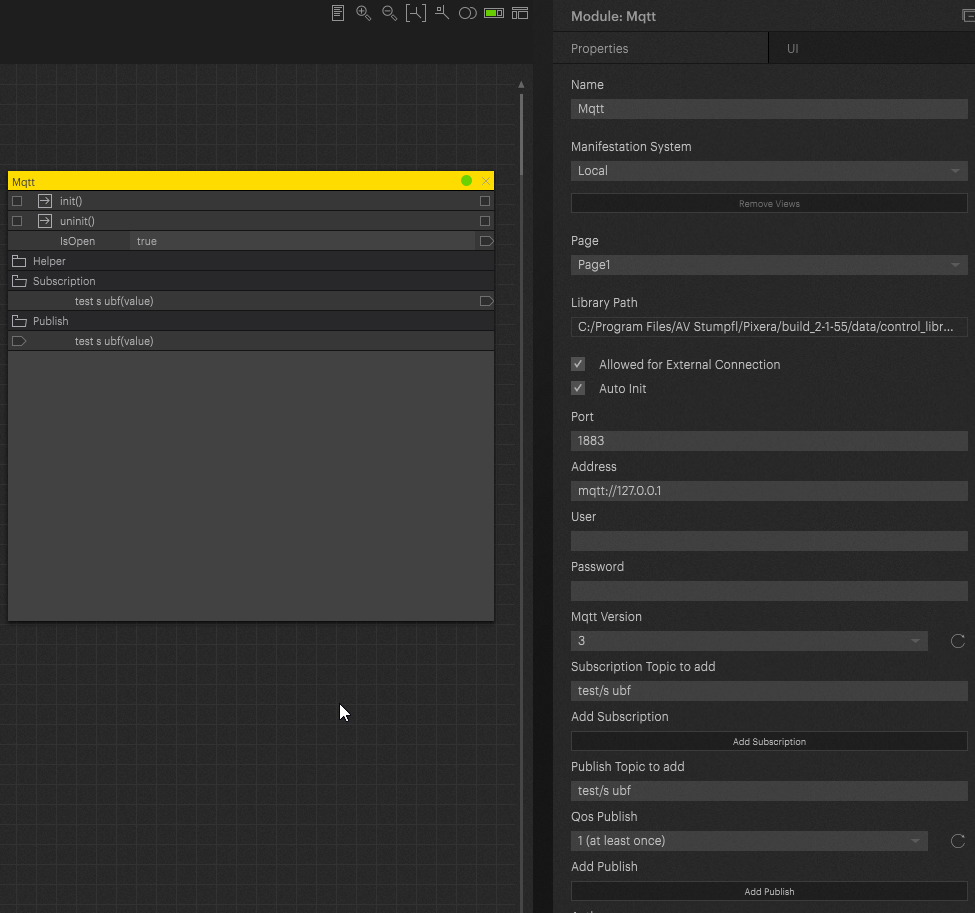
“Port” and “Address” of your MQTT Broker have to be set. “User” and “Password” can be used depending on your MQTT Broker configuration. Furthermore, you can choose the MQTT Version your Broker is supporting.
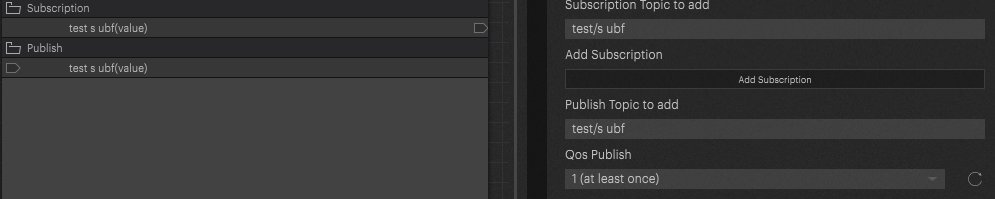
To subscribe or publish a topic, please fill in the topic and press “Add Subscription” or “Add Publish”. An Action will then be created in the corresponding folder of the Module. These created Actions can then be connected to any other Action in PIXERA Control.
For “Published” Actions, you can choose the “Qos” down below.
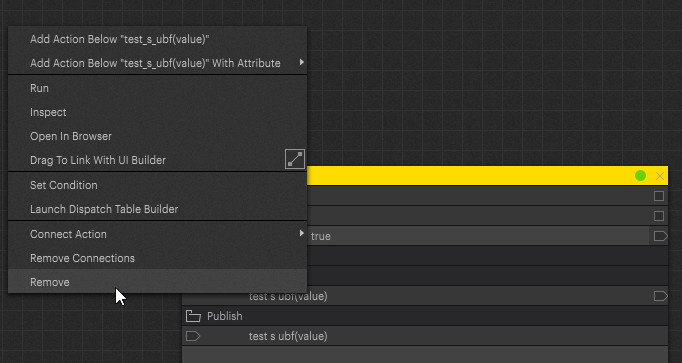
To remove an Action, simply right-click the Action and select Remove in the context menu.
Data
Actions
Action |
Info |
Input |
Output |
|---|---|---|---|
| init | - | - | |
| uninit | - | - | |
| IsOpen | isOpen (bool), doSet (bool) | - | |
| Helper | FOLDER | FOLDER | FOLDER |
| storeToProperty | (hidden) | - | - |
| loadFromProperty | - | - | |
| addSubscription | topic (), name (), qos () | - | |
| addPublish | topic (), name (), qos () | - | |
| getVersions | - | - | |
| publish | topic (string), value (string), optQos (int) | - | |
| addPublishActions | topic (string), qos () | - | |
| subReceive | topic (), value () | - | |
| subscribeActions | - | - | |
| connectionsStateHandler | a (), b (), c () | - | |
| addSubscriptionAction | topic (), doRebuild () | - | |
| subButtonHandler | - | - | |
| pubButtonHandler | - | - | |
| requireHelper | - | - | |
| qosOptions | - | - | |
| qosStringToNumber | str () | - | |
| rebuilldButtonHandler | - | - | |
| addWildcardButtonHandler | - | - | |
| rebuild | - | - | |
| cleaninternalSubscriptions | - | - | |
| Subscription | FOLDER | FOLDER | FOLDER |
| Publish | FOLDER | FOLDER | FOLDER |
Parameters
Name |
Content |
Type Hint |
Options Source |
Options Action |
| Auto Init | TRUE | bool | [] | |
| Address | mqtt://127.0.0.1 | string | [] | |
| Port | 1883 | number | [] | |
| User | string | [] | ||
| Password | string | [] | ||
| Subscription Topic to add | $SYS/broker/uptime | string | [] | |
| Add Subscription | Add Subscription | button | self.Helper.subButtonHandler | |
| Subscription Wildcard to add | test/* | string | [] | |
| Add Wildcard | Execute Wildcard | button | self.Helper.addWildcardButtonHandler | |
| Rebuild Subscriptions | Rebuild Subscriptions | button | self.Helper.rebuilldButtonHandler | |
| Clean Subscriptions | Clean internal Subscriptions | button | self.Helper.cleaninternalSubscriptions | |
| Publish Topic to add | test/subf2 | string | [] | |
| Qos Publish | 1 (at least once) | string | self.Helper.qosOptions | [] |
| Add Publish | Add Publish | button | self.Helper.pubButtonHandler | |
| Mqtt Version | 3 | string | self.Helper.getVersions | [] |
Pixera 2.1.55 | 03 July 2024 | OH
Support for Unreal 5.3, 5.4 & 5.5
These newer Unreal versions are now supported by PIXERA. In addition, the Interop DLL and the Content Plugin for 5.5 also available in this version.
Deltacast 6.26 SDK Integration
The Deltacast implementation was moved to the 6.26 SDK.
Pixera 25.1 INTER 2 | 26. January 2025 | FE