 Contact Us



There is a wide range of backup features available for the project needs.
It is important to understand a multi-client setup in PIXERA to be able to set up a Manager Backup scenario. Please review Manager - Client Setup or Basic Manager/Client Setup before moving forward.
Please also check out the Multi User Setup for general Multiuser setup knowledge. This article covers all the options found in the Multi-User Setup options within PIXERA.
If you are interested in Client Backup scenarios, please refer to this article CLIENT BACKUP.
Backup Scenarios
We differentiate between two different backup scenarios:
Full Backup - the backup system is a mirror of the live system. The backup system mirrors the live systems playback. As of 2.0 this scenario can be handled with multi-user functionality.
- Main System
- Manager Machine
- Client Machine
- Backup System (mirror of Main System)
- Backup Manager Machine
- Backup Client Machine
Partial Backup (Render Engine not opened) - not everything is fully backed-up. The backup system follows the main system. However, the outputs are not activated during playback. Depending on the failing client the overtake happens dynamically. Please look at Client Backup for technical information.
- Main System
- Manager Machine
- Client Machine
- Backup System
- Backup Manager
PIXERA Technical Setup
To configure a Manager Backup system please make sure that the discovery options are set up correct:
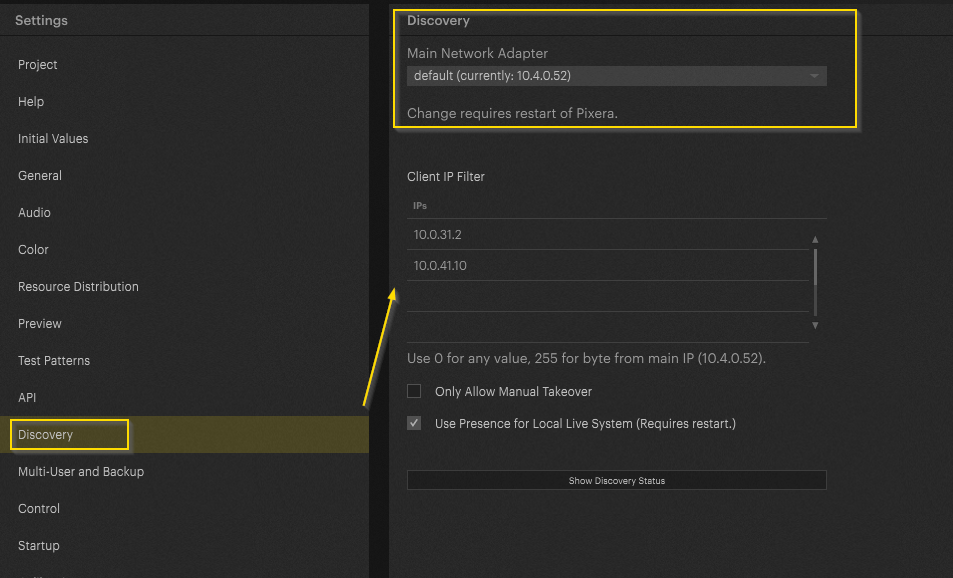
The Backup Manager must be able to detect, and furthermore, overtake clients in the network. Please refer to Manager - Client Setup for detailed information.
Then, navigate to Settings > Multi-User and Backup to setup a Multi-User Session. Once setup, choose the appropriate settings for Manager Backup, shown below.

- For the automatic backup to execute, PIXERA can "treat closed members as lost.” In other words, if another Manager's Engine goes offline or disconnects from the session, the Backup Manager will consider that a “lost” member
- Then, if a member is lost, the Backup Manager can automatically take over the lost member's outputs and activates those outputs locally on the Backup Manager machine, ensuring
- In many scenarios, a Client machine and it's outputs are also controlled by a Manager in the Multi-User session. “Automatically Take Over Clients From Lost Members” enables the Backup Manager to also assume responsibility for controlling the lost member's Client machine as well. So if the Main Manager who was controlling playback of a Client machine loses connection to the Multi-User session, the Backup Manager will takeover playback control of that lost member's Client.
- Additionally, you can also “Execute Control Action When Member Lost” if you would like PIXERA Control to send, for example, a command to a video switcher in order for the switcher to re-route I/O from the Main Manager to the Backup Manager
Alternatively, you can select “Take Over All Clients” to execute a manual Manager Backup.
IMPORTANT
We do not advise activating the automatic settings in live control environments. These features are designed for fixed installation situations where no technical person might be on the location.
Full Backup - Scenario
Depending on the project situation a full 1:1 backup may be needed. There are new options introduced in 2.0 which ease the 1:1 setup scenario.
- Main System
- Manager Machine
- Client Machine
- Backup System (mirror of Main System)
- Backup Manager Machine
- Backup Client Machine
As already described in the Multi-User article, set up a regular Multi-User session. Then, transfer the project to the backup system.
Now in a full 1:1 backup scenario, both systems run with their own clients (listed above). Somehow the output configuration must be mirrored to the backup system.
This can be achieved with a simple option and the definition of the so-called “Usage Names.” You can find them in the Mapping tab when selecting a Live System:

Let's imagine running a setup consisting of one Manager, one Client and the mirrored config for the backup system (also consisting of a Manager and Client). The settings must be copied from the live system to the backup system.
Simply define the same “Usage Name” for both Clients (live and backup system).
Live system:

Backup System:

Furthermore, activate the following setting in the Multi-User settings:

This setting will now reroute the In and Outputs at the load of the project, based on the assigned “Usage Name”.
Important
Please remember to assign the correct names for the in and outputs. Please refer to this documentation:
PIXERA Backup and Usage Presets
PIXERA 1.9.136 | 21. September 2023 | R.B.